ChatGPT + Claude · Training & business serviceswizardtraining.com.au
Claude
Course · Intermediate · Claude pathway, stage 3 of 5
Claude connectors and tools for everyday work
Understand what connectors and tools do, choose and connect an approved service, retrieve information with sources you can check, and know the difference between reading information and taking action.
Prepared examples of the exercises in this course. Each one shows the starting material, the AI-assisted step, the human review and the finished result you can open and read.
Main example · 43 seconds · narrated, sound off until you choose
An approved connector feeds a source-backed briefing
Starting material A request and an approved connector
Instruction Ask for sources and dates
Retrieving Access follows your own permissions
Retrieved Four documents, each with a date
Human review One source is out of date
Read, not act Nothing sent or changed
Finished work Every point traced to a source
Read the transcript
Starting material. In this example, someone needs a briefing on a project, using an approved, read-only demonstration connector.
Instruction. They ask for a one-page briefing, with the source and date for every point.
Retrieving. Claude asks the connector for relevant documents. It can only read what this person is allowed to see.
Retrieved. Four documents come back, each with its source and date.
Human review. The learner notices that one plan is out of date, and leaves it out.
Read, not act. Nothing is sent and nothing is changed. Reading information is different from taking action.
Finished work. The finished briefing traces every point to its source. You can read it in full below.
Prepared demonstration with fictional details. It is not a recording of Claude and not live AI output. Background footage was generated with Higgsfield and the narration uses a synthetic Higgsfield voice; the soft tones were synthesised separately. Every word, number and line of code on screen is rendered from the example below. Higgsfield is not part of the course.
Where it starts
A request for a briefing and an approved, read-only demonstration connector.
What you practise
Scoping a request, reading what the connector retrieved, tracing each point to a source and leaving out superseded documents.
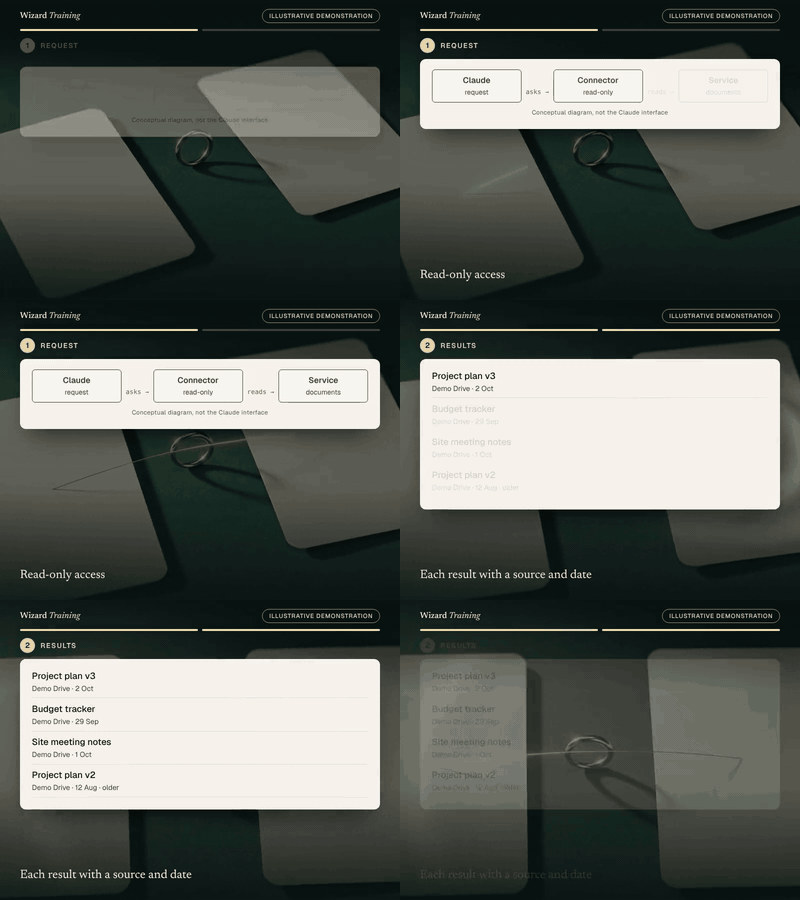
A connector returns relevant informationRequest → ResultsRead-only access. Then: Each result with a source and date.GIF version (783 KB)Reading versus actingDraft → ActionA reply is drafted. Then: Sending is declined.GIF version (877 KB)
Still images · for a quick look or a static alternative
Before and after · static viewThe completed example · select to read it in full
Inspect every step · pause, replay or show the completed state
You practise this in the course
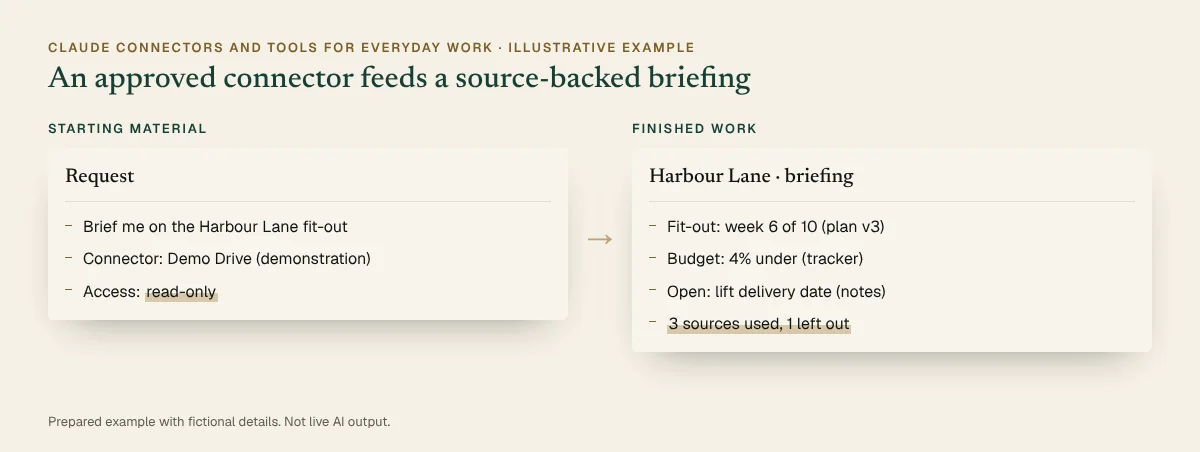
An approved connector retrieves documents for a source-backed briefing
1Starting material
Request
Brief me on the Harbour Lane fit-out
Connector: Demo Drive (demonstration)
Access: read-only
2Prompt or instruction
Instruction
Using the Demo Drive connector, find the latest documents about the Harbour Lane fit-out and give me a one-page briefing. List the source and date for every point, and tell me if any sources disagree.
3AI-assisted work
Project plan v3Demo Drive · 2 Oct
Budget trackerDemo Drive · 29 Sep
Site meeting notesDemo Drive · 1 Oct
Project plan v2Demo Drive · 12 Aug · older
4Human review
Every point has a source and date (Checked)
Plan v2 superseded by v3: left out (Action needed)
Nothing was sent or changed (Checked)
5Finished deliverable
Harbour Lane · briefing
Fit-out: week 6 of 10 (plan v3)
Budget: 4% under (tracker)
Open: lift delivery date (notes)
3 sources used, 1 left out
You start with
A request for a briefing and an approved, read-only demonstration connector.
What you practise
Scoping a request, reading what the connector retrieved, tracing each point to a source and leaving out superseded documents.
Account note: In the course you use your own Claude account and services you are allowed to use, with non-confidential information. At work, your organisation decides which connectors and tools are allowed.
Account note: In the course you use your own Claude account and services you are allowed to use, with non-confidential information. At work, your organisation decides which connectors and tools are allowed.
Prepared demonstration Prepared demonstrations with fictional names and figures. They show the kind of work practised, not live AI output, and your own results will depend on your material.
Who it's for
Non-technical professionals and team champions who want Claude to work with information in the services their organisation already uses.
Experience needed: Comfortable using Claude for everyday tasks. No technical skills needed.
Problems it solves
If this sounds familiar
Copying information from five different apps into one chat
Not knowing what Claude can see in a connected service
Uncertainty about whether Claude will send or change something
Summaries that cannot be traced back to a source
Outcomes
By the end you can
Explain what connectors and tools do and when to use them
Choose an appropriate integration and check access first
Connect, configure and disconnect an approved service
Retrieve information and trace every point to a source
Tell read-only tasks apart from actions that change or send information
Troubleshoot common access problems
Modules
How the day runs
4 modules, taught live with hands-on practice in each. Select a module to see its topics.
A Claude account. Directory connectors are available on all plans, and custom connectors are limited on free accounts. On Team and Enterprise plans an administrator decides which connectors are available and how their tools are permitted. You use your own Claude account and connect services you are already allowed to use, with non-confidential information only. Check with your administrator before the session if your organisation manages connectors.
Equipment
A laptop with a current browser, your own Claude account, and access to at least one service you are allowed to connect (for example a shared drive or calendar).
Experience
Comfortable using Claude for everyday tasks. No technical skills needed.
Data
Use only non-confidential material in exercises. We show you how to check your organisation's AI policy and what not to paste into an assistant.
Dates and pricing
How to book
Public sessions
Register interest and we'll email you the next available dates, session times and the price. Nothing is booked until you confirm.
You use your own Claude account and connect only services you are already allowed to use, working with non-confidential information. If your organisation manages connectors, check with your administrator first. You also leave with a checklist for connecting approved services at work.
Which plan do I need?
Directory connectors work on all Claude plans. On Team and Enterprise plans an administrator chooses which connectors are available.
Can Claude send emails or change records through a connector?
Some connectors include tools that can change or send information. You learn to recognise them, to set them to ask first, and to decline actions you don’t want. Claude also cannot do anything your own account isn’t allowed to do in that service.
Is this the same as MCP?
Connectors are built on the Model Context Protocol (MCP). This course is about using them; Claude MCP: Connect and Configure covers the technical side.
How long is the course?
One day, live online. Register interest and we’ll email you the next available dates and the price.